Moving your school or Trust to the cloud: the complete guide

LEAD IT Services staff working on laptop

Moving to the cloud gives schools and Trusts a simpler, more secure and more consistent IT environment, but only if it is planned around how schools actually work. This guide explains what a cloud migration involves, what it means for teaching and staff, and how to approach it step by step.

It is written for headteachers, school business managers, Trust COOs and CFOs, and in-house IT leads. Whether you are retiring an ageing server at a single primary school or bringing a whole Multi-Academy Trust into one Microsoft 365 environment, the same principles apply.

You will find:

  • what cloud migration means in a school context
  • how it connects to the DfE digital and technology standards
  • the Microsoft tools most schools move to
  • what can move to the cloud and what may need to stay
  • the stages of a migration and how to avoid disrupting lessons
  • what Multi-Academy Trusts need to consider when consolidating schools
  • timelines, costs, common pitfalls and a readiness checklist

What cloud migration means for a school or Trust

Cloud migration is the move of digital storage and services from physical equipment in your building to services hosted and managed in the cloud. For most UK schools, that means Microsoft 365.

In practice, it usually involves four things:

  • Identities: staff and pupil accounts move from a local Active Directory server to Microsoft Entra ID (formerly Azure AD), so one account works everywhere.
  • Devices: Windows laptops and desktops are managed through Microsoft Intune rather than through a server in the school.
  • Files: documents move from shared drives on a local server into OneDrive, SharePoint and Microsoft Teams.
  • Applications: software is delivered from the cloud where possible, with any specialist systems reviewed one by one.

It is not just copying files into OneDrive. A successful migration also covers permissions, printing, Wi-Fi, specialist curriculum software, finance and administration systems, and how staff will work afterwards. Treating it as a file transfer is the most common reason migrations disappoint.

Why schools and Trusts are moving to the cloud

Most school IT estates have grown organically over many years. Servers age, licences multiply and each school in a Trust ends up doing things slightly differently. A well-planned move to the cloud simplifies that.

The main benefits of cloud migration schools and Trusts report are:

  • Stronger security. Modern identity tools, multi-factor authentication and centrally enforced device policies reduce the risk from phishing and lost devices.
  • Less reliance on ageing servers. Fewer servers to replace, power, cool, patch and back up on site.
  • Central device management. Intune lets IT configure and update devices wherever they are, not only when they are on the school network.
  • Better collaboration. Teams, SharePoint and OneDrive make it easier for staff to share planning, resources and documents, within a school and across a Trust.
  • Flexible, secure access. Staff can reach what they need from approved devices at home or on another site, without a VPN.
  • Consistency across a Trust. One set of standards, one way of working and one view of the estate for central teams.
  • Faster onboarding. New staff, new devices and new schools can be brought in to a known standard.
  • A foundation for what comes next. Trust-wide reporting, AI tools and new digital services all depend on a coherent cloud platform.

Cloud migration and the DfE digital and technology standards

The DfE expects every school and Trust to be working towards six core digital and technology standards by 2030: broadband, wireless networks, network switches, digital leadership and governance, filtering and monitoring, and cyber security. A cloud migration is one of the most practical ways to make progress on the cyber security and governance standards at the same time.

The DfE also publishes a dedicated cloud solutions standard. It encourages schools to use cloud services in place of local servers where they can, and sets five expectations:

DfE cloud standard
What it asks of schools
How a well-planned migration addresses it
Use cloud solutions instead of locally hosted systems Understand your current software, devices and data, then replace servers where you can Discovery maps every server, application and shared folder before anything moves
Follow data protection legislation DPIAs for cloud services holding personal data, clear contracts, UK or EU data storage unless transfers are compliant Data protection is planned with your DPO, and joiner and leaver processes are documented
Use ID and access management tools One central account per user, group-based access, documented processes for adding and removing users Microsoft Entra ID becomes the single sign-in, with roles for staff, pupils and admins
Work on a range of devices and be available when needed Secure access from different devices, with availability that meets your needs Intune-managed devices and Microsoft 365 give consistent, secure access on and off site
Have appropriate data backup in place Know what your provider backs up and for how long; use the 3-2-1 rule for critical data Independent Microsoft 365 backup is designed in, not bolted on later

Two points in the standard are worth highlighting. First, the DfE accepts that many schools will run a hybrid model, and that some systems such as door access control, building management or cashless catering may still need local servers. Second, it notes that cloud providers may hold backups for as little as 30 days, which is why a separate backup of Microsoft 365 matters.

The cloud standard also depends on others: reliable broadband, good switching, cabling and Wi-Fi, and the cyber security standards. A migration plan should check these first, because Microsoft 365 is only as good as the network it runs over.

Don’t treat the DfE standards as a box-ticking exercise to do after the migration. Use them to shape the plan. If your Wi-Fi or switching isn’t up to standard, fix that first, because staff will blame Microsoft 365 for problems that are really the network.

Chris Edwards, L.E.A.D. IT Services

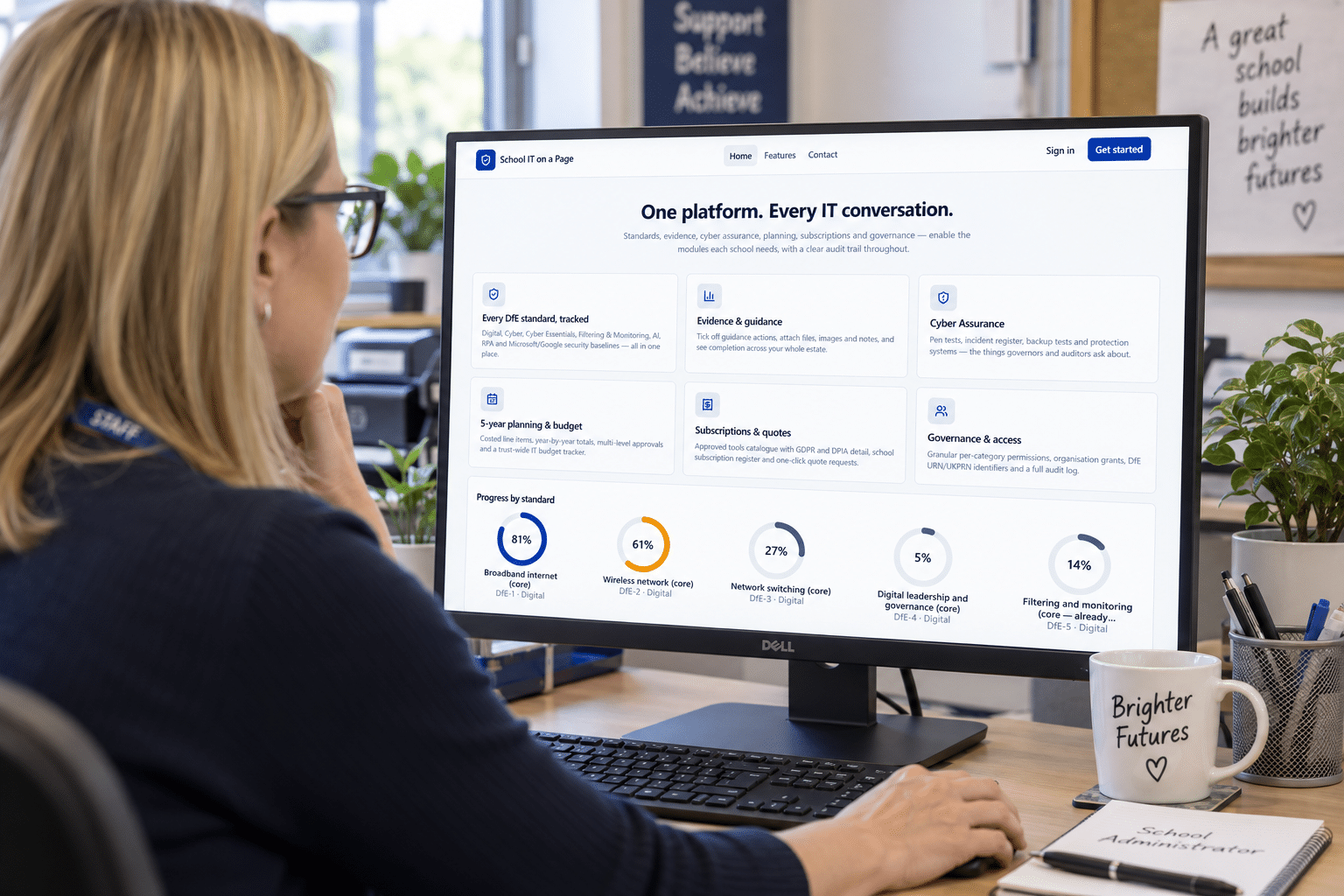
Track your progress against every DfE standard with our School IT on a Page app.


L.E.A.D. IT Services IT support in Derby and East Midlands

Hybrid or fully cloud; choosing your solution

There is no single correct solution. The right destination depends on what your servers do today and what your school or Trust needs next.

Approach
What it looks like
Suited applications
Fully cloud Accounts in Entra ID, devices in Intune, files in Microsoft 365, no file or domain servers on site Schools whose remaining systems are already cloud-based or can move
Hybrid Cloud identity and files, with a small number of local servers kept for specific systems Schools with building systems, legacy curriculum software or local finance tools
Phased Start hybrid, then retire remaining servers as contracts end or software is replaced Most Trusts, and schools with a server refresh due in the next few years

Hybrid is not a failure. A planned hybrid environment, with a clear list of what stays local and why, is far better than an accidental one. The aim is to remove servers that no longer earn their place, not to move everything for the sake of it.

Some schools feel they’ve failed if a server is still humming in the cupboard after go-live. They haven’t. What matters is that every system still on site is there for a reason, is secured and backed up, and has a date in the diary for when you’ll review it.

Chris Edwards, L.E.A.D. IT Services

The building blocks of cloud migration; what your school moves to

Most school migrations land on the same set of Microsoft services. Each does a distinct job.

Service
What it does
Replaces
Microsoft Entra ID One account and sign-in per person, multi-factor authentication, group-based access Local Active Directory and separate logins for each system
Microsoft Intune Configures, secures and updates Windows devices from the cloud, on or off site Group Policy and on-premises device management
Windows Autopilot Sets up new or rebuilt devices automatically when a user signs in Manual imaging of each device
OneDrive Personal storage for each member of staff Home drives on a file server
SharePoint Structured storage for departmental, school and Trust-wide information Shared drives on a file server
Microsoft Teams Collaboration, chat, meetings and team files Email chains, separate meeting tools, ad hoc sharing
Exchange Online Email, shared mailboxes and calendars On-premises or legacy email

OneDrive, SharePoint or Teams; where should files go?

This is the question staff ask most, so it is worth agreeing early:

  • OneDrive for a person’s own working files, drafts and documents only they need.
  • SharePoint for structured shared areas such as departments, policies, governance and admin, with permissions set by role.
  • Teams for working groups that collaborate actively, such as a year team or a project. Files in a team are stored in SharePoint behind the scenes.

A clear structure, designed around how staff actually work, is what makes files easy to find after migration. Recreating an old shared drive folder by folder usually recreates its problems too.

Have a tidy-up before you move anything. Most shared drives hold years of duplicates and folders nobody has opened since they were created. Ask each department to agree what they actually need, then design SharePoint around that. You’ll move less data, and staff will find things far more easily.

Chris Edwards, L.E.A.D. IT Services

What can move – and what may need to stay

Many schools can significantly reduce or remove their local servers. Whether you can remove them entirely depends on what they do today, which is why discovery comes before any decision.

Usually moves to the cloud
Needs reviewing case by case
Often stays local
User accounts and sign-in Specialist curriculum software (for example CAD, music or media packages) Door access control
Staff and shared files Finance and payroll systems Building management systems
Email, calendars and shared mailboxes Older MIS integrations and reporting tools Cashless catering
Device management and updates Exam and assessment software CCTV recording
Printing (via cloud print services) Software with hardware licence dongles Some network services, such as filtering appliances

When something must stay, the goal is to keep it deliberately: documented, secured, backed up and with a plan for when it can be replaced. Many schools find that a server refresh, a software contract renewal or a move to a cloud version of an application creates a natural point to retire the last local systems.

The application that catches schools out is rarely the big one. It’s the licence for the music software installed on six machines, or the report a finance officer runs every month. Ask the people who use the systems, not just the people who installed them.

Chris Edwards, L.E.A.D. IT Services

The six stages of a school cloud migration

Every migration is different, but successful ones follow the same broad sequence. Skipping the early stages is what causes problems on go-live day.

  1. Discovery and assessment. Map every server, device, application, user, shared folder and dependency. Talk to leaders, office staff and teachers about how they actually work, not just what the system diagram says.
    • Output: an inventory, a list of what can move and what must stay and a realistic timeline.
  2. Design and migration planning. Design the target environment: identity, device policies, security, file structure and permissions. Decide the sequence of work and how to schedule it around the school calendar.
    • For a Trust, this includes a repeatable model that each school can follow.
  3. Build and test Microsoft 365, Entra ID and Intune configuration. Prepare permissions and data structures. Confirm how each specialist application will be delivered.
    • Communicate with staff: what will happen, when, and anything they need to do beforehand.
  4. Migration and deployment. Move data, rebuild and enrol devices into Intune, deploy applications and move users off legacy systems. Major work is usually scheduled for evenings, weekends or holidays.
  5. Testing and handover. Check what staff rely on: accounts, files, OneDrive sync, Teams, shared areas, permissions, calendars, printing, Wi-Fi and essential applications. Fix issues before they reach the classroom.

Ongoing support and optimisation. Strengthen security, refine policies, train staff and retire remaining legacy systems. The biggest benefits usually arrive in the months after go-live.
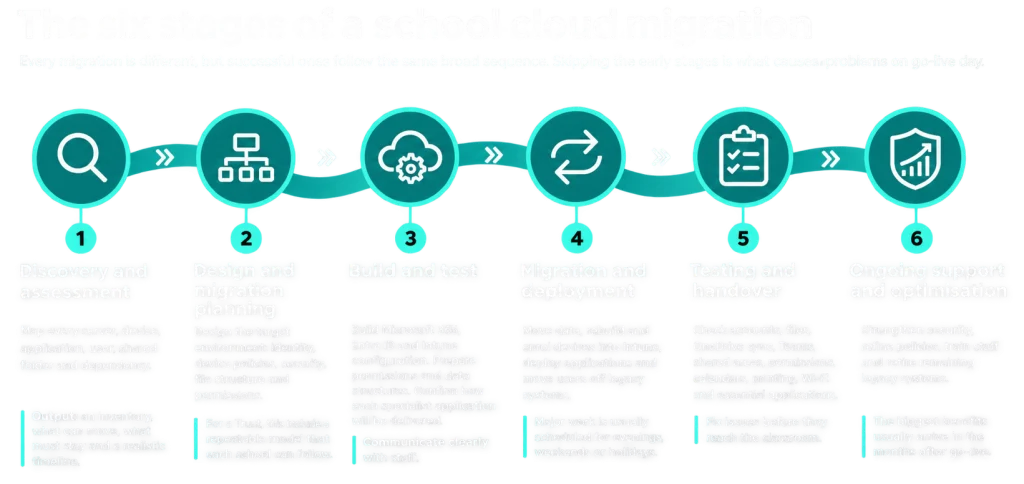
Six stages of Cloud Migration


Discovery is the part people want to rush, and it’s the part that decides whether go-live is calm or chaotic. Every hour spent understanding the current environment saves several hours of firefighting later.

Chris Edwards, L.E.A.D. IT Services

Want to talk through where your school is on this journey? Book a cloud migration consultation.

Cloud migration for Multi-Academy Trusts

For Trusts, the biggest challenge is usually fragmentation, not ageing servers. Each school may arrive with its own Microsoft 365 tenancy, its own settings, its own domain and its own way of doing things. Managing many separate environments is costly, inconsistent and hard to secure.

Tenancy consolidation

Consolidation brings schools into a single, Trust-wide Microsoft 365 tenancy. Done well, it gives the Trust:

  • one set of security and access policies
  • central management and visibility for the Trust IT team
  • Trust-wide Teams and SharePoint for sharing between schools
  • a consistent experience for staff who work across sites
  • simpler, cheaper onboarding for new schools

It is a significant project. Mailboxes, OneDrive files, Teams, SharePoint sites, calendars and domains all need to move between tenancies, and users need to keep working throughout.

Phased, repeatable migrations

Schools do not need to move all at once. Most Trusts benefit from a repeatable model; a standard design and playbook that each school moves through in planned phases. Each migration is quicker and smoother than the last, and risk is spread across the programme.

Respecting school identity

Consolidation is not standardisation for its own sake. A good design keeps each school’s identity, such as email addresses, branding and local sites, while sharing a common secure foundation.

Bringing in new schools

When a school joins a Trust, its IT should not become another silo. An agreed onboarding approach lets central teams assess a joining school’s IT early, plan its migration and bring it onto the Trust standard in a predictable way.

For Trusts, my biggest tip is to agree your standard before you migrate your first school, then treat that first school as the pilot. Write down what worked and what didn’t. By the fifth or sixth school, you’ve got a runbook that makes each migration quicker and lower risk than the last.

Bring IT into the conversation as soon as a school is talking about joining the Trust, not after it has joined. A short IT due diligence review early on means no surprises about licences, contracts or ageing kit later.

Chris Edwards, L.E.A.D. IT Services

Security, data protection and backup

Moving to the cloud can make a school considerably more secure, but security has to be designed in from the start.

Security

  • Multi-factor authentication for all staff, and especially for anyone with access to sensitive data or admin rights.
  • Conditional Access policies so that only trusted devices and sign-ins can reach school data.
  • Managed devices with encryption, automatic updates and the ability to wipe a lost laptop remotely.
  • Least-privilege admin roles, so no one has more access than their job needs.
  • Alignment with Cyber Essentials, which many schools use as their security baseline.

Data protection

Schools are data controllers for highly sensitive information about children. Before migrating, involve your Data Protection Officer early. The DfE expects a DPIA for cloud services that hold personal data, clear contracts with providers, data stored in the UK or EU unless transfers are compliant, and documented processes for adding and removing user accounts.

Backup

Microsoft keeps your services running, but it is not a substitute for your own backup. Deleted files, ransomware and accidental changes are your responsibility, and retention periods are limited. The DfE recommends the 3-2-1 rule for critical data: at least three copies, on two different devices, with one off site. An independent Microsoft 365 backup, such as Redstor, should be part of the migration plan.

If you only do one thing on security, switch on multi-factor authentication for every member of staff. And don’t assume Microsoft is backing up your files the way your old server was. Ask the question, check the retention periods, and put an independent backup in place.

Chris Edwards, L.E.A.D. IT Services

Read more about our cyber security and disaster recovery services.

Minimising disruption to teaching

In a business, a bumpy IT migration is an inconvenience. In a school, it means a teacher on Monday morning who cannot open their lesson, log in to the board or print the worksheets. Planning around the school day is what separates a good education migration from a generic one.

Practical ways to protect teaching time:

  • Schedule major work out of hours. Device rebuilds can happen after school, over a weekend or in the holidays. A common approach is to collect staff laptops on Friday afternoon and return them ready to use before Monday’s first lesson.
  • Avoid pressure points. Steer clear of exam seasons, inspections, report-writing windows and the first weeks of term.
  • Back up before you rebuild. Every device’s local files are captured before it is wiped.
  • Test what teachers actually use. Boards, printers, curriculum software and shared resources, not just sign-in.
  • Provide visible support on day one. On-site help in the first days after go-live resolves small issues before they grow.
  • Communicate clearly and early. Staff should know what is changing, when, what they need to do, and who to ask.
  • Offer short, practical training. Focus on the everyday tasks: saving files, finding shared resources and using Teams.

Get the school calendar out before you get the project plan out. Exams, inspections, parents’ evenings and the first week of term should all shape your timeline. And be visible on the first morning after go-live: a friendly face in the staffroom solves more problems than any helpdesk ticket.

Chris Edwards, L.E.A.D. IT Services

How long it takes and what it costs

Timescales

A single school and a Trust-wide programme are very different projects. Timescales depend on:

  • the number of sites, users and devices
  • how many servers and applications need to be reviewed or replaced
  • how much data there is, and how tidy it is
  • whether separate Microsoft 365 tenancies need consolidating
  • how much work can be scheduled into weekends and holidays

For context, we consolidated 29 mature Microsoft 365 tenancies into one Trust-wide tenancy within a single year, alongside the refresh of around 4,000 devices. A discovery and assessment stage gives you a realistic timeline before any work begins.

Costs

The cost of a migration depends on its scope. The main elements are:

  • Project work: discovery, design, migration, testing and handover.
  • Licensing: Microsoft 365 Education licences, where the level you choose affects which security and management features you get.
  • Devices: any devices too old to be rebuilt and enrolled into Intune.
  • Network: upgrades to broadband, switching or Wi-Fi, if your current infrastructure will not support cloud services well.
  • Backup and security tools: independent Microsoft 365 backup and any additional security services.

It is worth comparing a migration with the cost of staying put. Replacing a server is rarely just the hardware: it also brings licensing, power, warranties, backup and ongoing management. Many schools find that a server refresh is the right moment to ask whether a like-for-like replacement is needed at all.

When a server is due for replacement, that’s the moment to pause and ask whether you need to replace it at all. Compare the full cost of staying on premises, including power, warranties, backup and management time, with the cost of moving. The answer often surprises people.

Chris Edwards, L.E.A.D. IT Services

Common pitfalls, and how to avoid them

Pitfall
What happens
How to avoid it
Treating it as a file move Files arrive in OneDrive, but printing, apps and permissions break Scope identity, devices, apps and printing from the start
Skipping discovery A forgotten finance tool or curriculum package stops working on day one Inventory every system and talk to the people who use it
Copying the old shared drive Years of clutter and confusing folders move straight into SharePoint Redesign the structure around how staff work, and tidy before moving
Getting permissions wrong Staff cannot see what they need, or can see what they should not Map permissions by role and test them during handover
Ignoring the network Microsoft 365 is slow because broadband or Wi-Fi cannot cope Check network capacity against the DfE standards first
Poor timing Work clashes with exams, inspections or the start of term Plan around the school calendar
No backup plan Deleted or encrypted files cannot be recovered Add independent Microsoft 365 backup
Little communication Staff are surprised, anxious and slow to adopt new ways of working Tell staff what, when and why, and give them practical training

Cloud migration readiness checklist

Use these questions to gauge how ready your school or Trust is. Each one you cannot answer yet is something discovery should cover.

  • Do we know what every server in our school or Trust does?
  • Do we have a list of all applications, including specialist curriculum, finance and admin software?
  • Do we know which systems hold personal or sensitive data, and has our DPO been involved?
  • Do we know how many Microsoft 365 tenancies we have, and who manages each one?
  • Are our broadband, switches and Wi-Fi meeting the DfE standards?
  • Do we know which devices can be rebuilt and which need replacing?
  • Is multi-factor authentication in place for all staff?
  • Do we have a backup of Microsoft 365 that is independent of Microsoft?
  • Have we agreed where staff files, shared files and team files should live?
  • Do we have clear joiner and leaver processes for staff and pupil accounts?
  • Have we identified dates in the school calendar to avoid?
  • Do we have a plan to communicate with and train staff?
  • For Trusts: do we have an agreed standard for schools joining the Trust?

Case study: 29 schools, one Microsoft 365 environment

Embark Federation shows what a well-planned Trust migration can achieve. As the Trust grew, its 29 schools, four secondaries and 25 primary, junior, infant and nursery schools, were each running their own Microsoft 365 tenancy.

Working alongside the Trust, L.E.A.D. IT Services:

      • consolidated 29 mature Microsoft 365 tenancies into one Trust-wide tenancy within a single year
      • refreshed around 4,000 staff and classroom devices as part of the wider programme
      • scheduled work around school operations, using evenings, weekends and holidays

The results:

Measure
Result
Teaching days lost None
Support tickets from the tenancy migration 113, none service-affecting
Service-affecting incidents (share of support requests) Down 70% across the wider partnership

The single environment now supports Trust-wide collaboration and reporting that was not possible before. Read the full Embark Federation case study.

Frequently asked questions about migrating to the cloud

The cloud solutions standard is not one of the six core standards for 2030, but the DfE encourages schools to use cloud services in place of local servers where they can, and to do so as soon as possible. A migration also supports progress on the core cyber security and governance standards.

Microsoft 365 includes strong security tools, but they need to be configured well. Multi-factor authentication, Conditional Access, managed devices, sensible admin roles and independent backup are what turn a secure platform into a secure school.

Microsoft protects its service against failure, but retention of deleted or changed data is limited. Schools remain responsible for recovering from accidental deletion, ransomware or malicious changes, so an independent backup is strongly recommended.

Microsoft offers UK data residency for many Microsoft 365 services. Your DPO should confirm where data is held, as the DfE expects data to be stored in the UK or EU unless any international transfer complies with UK GDPR.

Active Directory runs on a server in your school and manages accounts on your local network. Microsoft Entra ID is the cloud equivalent: it manages accounts and sign-ins wherever staff are, and works across Microsoft 365 and many other education apps.

Many existing Windows devices can be rebuilt and enrolled into Intune. Devices that cannot run a supported version of Windows will need replacing, and discovery identifies these early.

Usually, yes. Pupil accounts, shared classroom devices and curriculum software are planned alongside staff, with suitable safeguarding, filtering and access controls.

It often makes sense to align with the Trust’s standard from the start, rather than migrating twice. Talk to the Trust’s central team before committing to a separate project.

Ready to plan your move to the cloud?

Whether you are retiring an ageing server at one school, moving device management to Intune or consolidating a whole Trust into a single Microsoft 365 environment, the first step is the same: understanding where you are today.
L.E.A.D. IT Services works with schools and Multi-Academy Trusts to plan and deliver cloud migrations around the realities of the school day. We start with discovery, give you a clear plan and timeline, and stay with you after go-live.

Written by: Chris Edwards

Published on: 30 October 2026

Categories: Blog